1. Getting Started - Cockatrice
Helpful Links
- Cockatrice Wiki: https://github.com/Cockatrice/Cockatrice/wiki
- Tutorials on setting up the client, how to play, etc.
- Tutorials quick-link: https://github.com/Cockatrice/Cockatrice/wiki/Tutorials
- Etiquette
Client Setup
Install
Portable Version (Windows Only)
Instead of installing the app, you can use this portable version of it I've zipped up and put into Google Drive. Unzip it and launch the executable.
Once Cockatrice has loaded, go to the menu and click Help > Check For Card Updates to update the card database. Go through all the steps, choosing the defaults. If any new sets are added, make sure to click Yes when prompted. If you are still having troubles with cards in your decks, double check and make sure all sets are enabled by going to Card Database > Manage Sets.
New Install
- Download the client install file from their main website: https://cockatrice.github.io/
- Follow the default install / instructions: https://github.com/Cockatrice/Cockatrice/wiki/Getting-Started
Themes
These change up the look and feel of Cockatrice. I'd recommend the Modern one if you don't want a lot of flare.
Recommended
- Modern: https://github.com/jonschoning/cockatrice-theme-modern/tree/master
- Minimalist
- Cleaner interface
- Comes with sound theme as well
- MTGO Themed: https://github.com/ArtemisGraphic/MTGO-Theme-for-Cockatrice#
- Dark Theme
- Requires Font Install
Installation
https://github.com/Cockatrice/Cockatrice/wiki/Themes
TLDR;
- Download code zip file from GitHub or clone repo
- Navigate to "themes" folder in Cockatrice folder
- Copy and paste theme folder
- Reboot client
Server Setup
Registering for a server
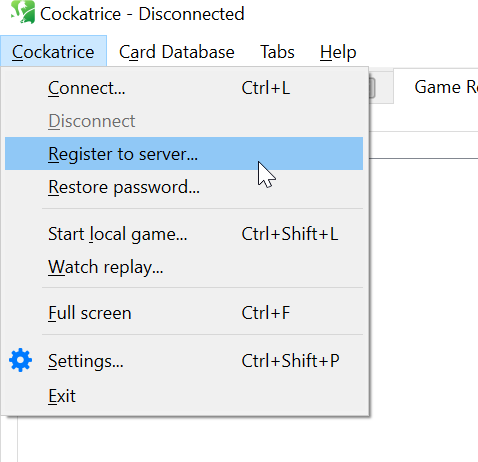
- Under "Cockatrice" menu, click "Register to server"
- Enter the host & port provided to you separately and then the following:
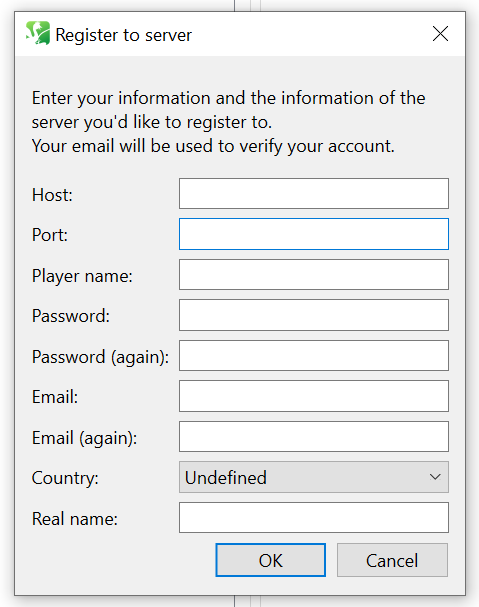
- Player Name (This is also your username)
- Must be at least 8 characters long
- Password
- Must be at least 8 characters long
- NOTE: Save this somewhere as it doesn't automatically save it for you at this point
- Email is required. An email with an activation code will be sent afterwards.
- Country/Real Name not required.
Importing Decks
Export from Archidekt
Make sure your deck doesn't have a sideboard or be prepared to rebuild it in Cockatrice as it doesn't let you import a separate sideboard easily
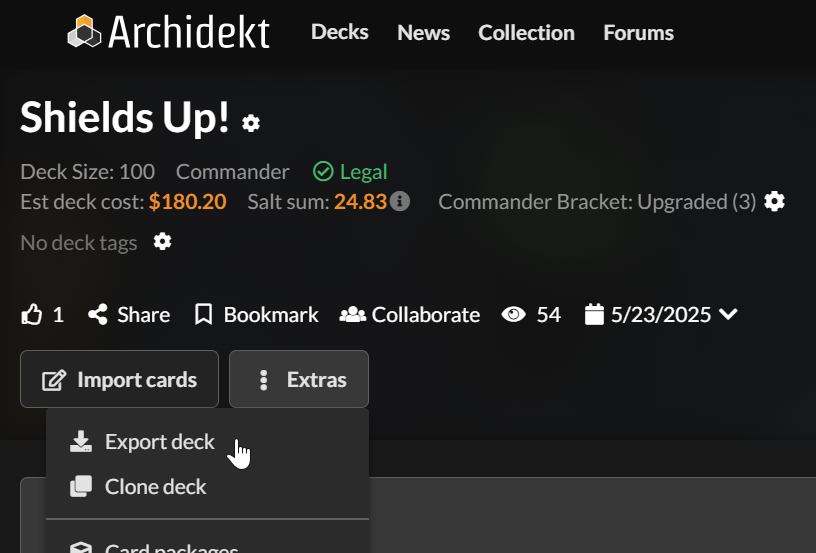
- Go to the deck you want to import and click "Extras" then "Export"
- Uncheck "Include out of deck cards (eg: maybeboard)"
- Leave all other settings the same
- Click "Copy"
- Follow the Add to Cockatrice instructions below.
Add to Cockatrice
- Go to Cockatrice and make sure your Deck Editor is open
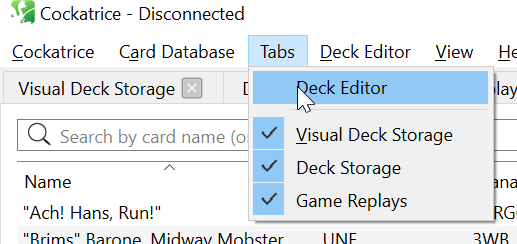
- Create a new deck
CTRL+Nor "Deck Editor > New Deck" - Load deck from clipboard
CTRL+SHIFT+Vor "Deck Editor > Load deck from clipboard" - It will list all the cards. Leave all settings as is and click "Ok"
- Set your deck name at the top right under "Deck"
- Save the deck to your harddrive
CTRL+Sor Deck Editor > Save
Commander Decks
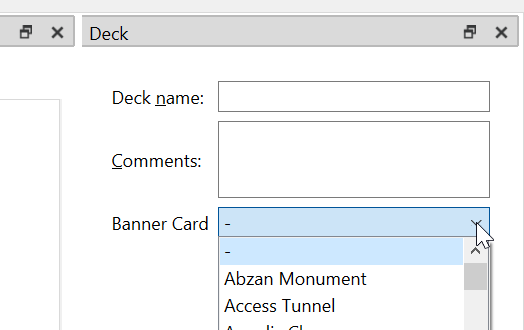
- Set Commander as Deck Image
- Set the "Banner Card" in the deck to your commander
- Move Commander to Sideboard
- Find and click your commander
- Click the following icon

- This will move your commander to the sideboard to find him easier when you play a game
- Set the "Banner Card" in the deck to your commander